

Android Step Count Sync Guide
How to sync FitlyEver with Health Connect and Samsung Health
FitlyEver automatically records your activities by importing step count data from Samsung Health through Health Connect.
*Please note that loading data may take some time.
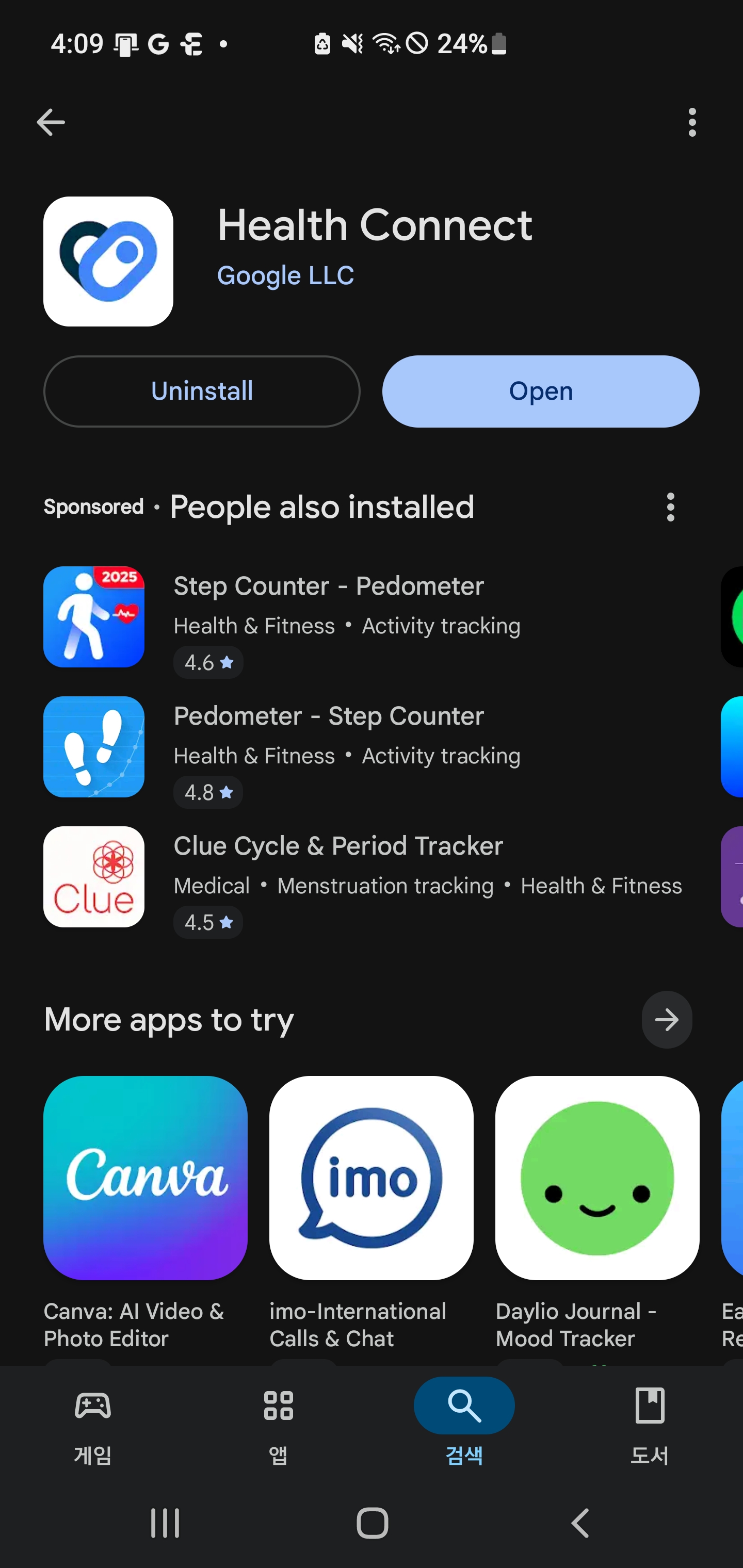
1. Install Health Connect App
Install the Health Connect app from Google Play Store.
2. Configure App Permissions
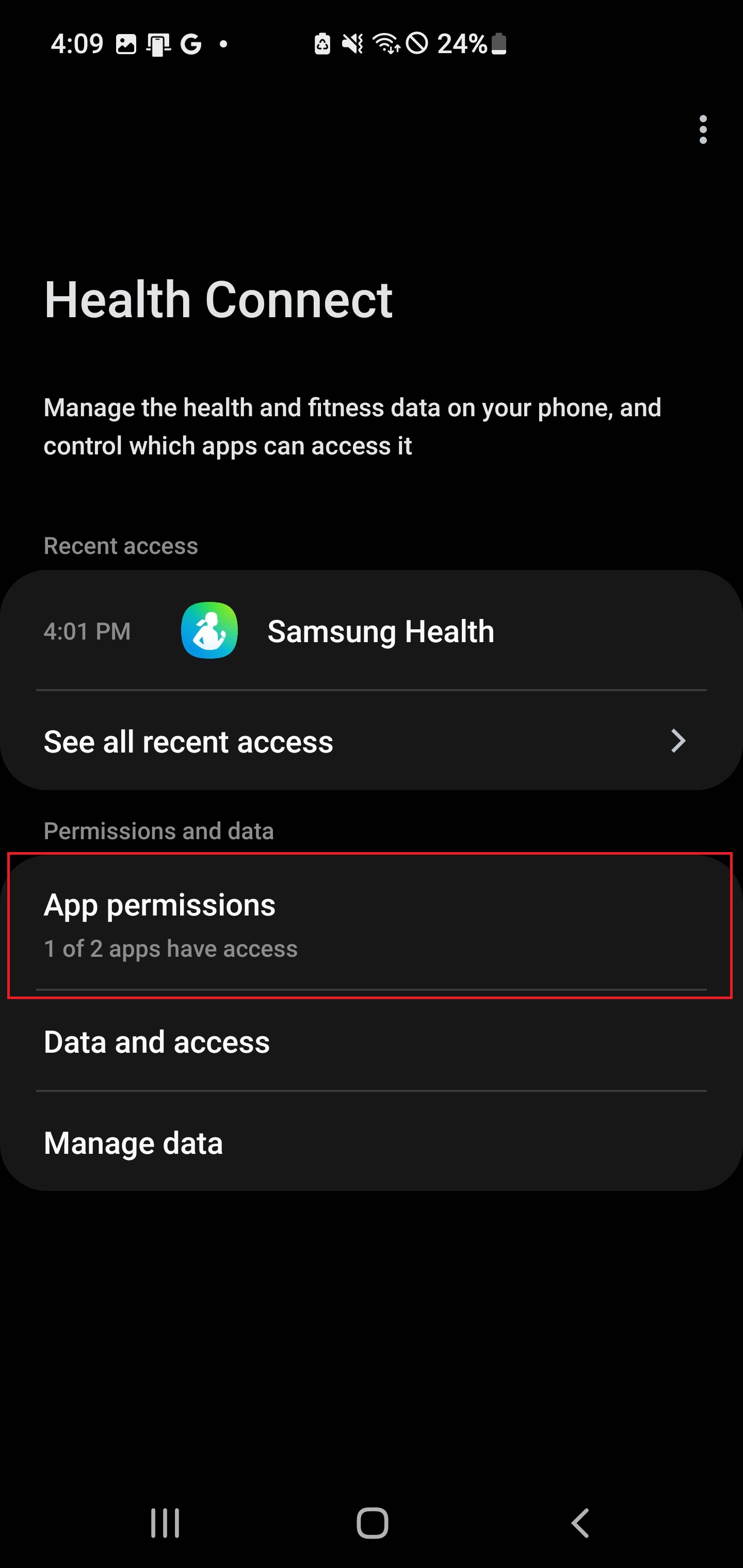
In the Health Connect app, go to the 'App permissions' page and click on both 'Samsung Health' and 'FitlyEver' apps.
3. Allow Steps Permission
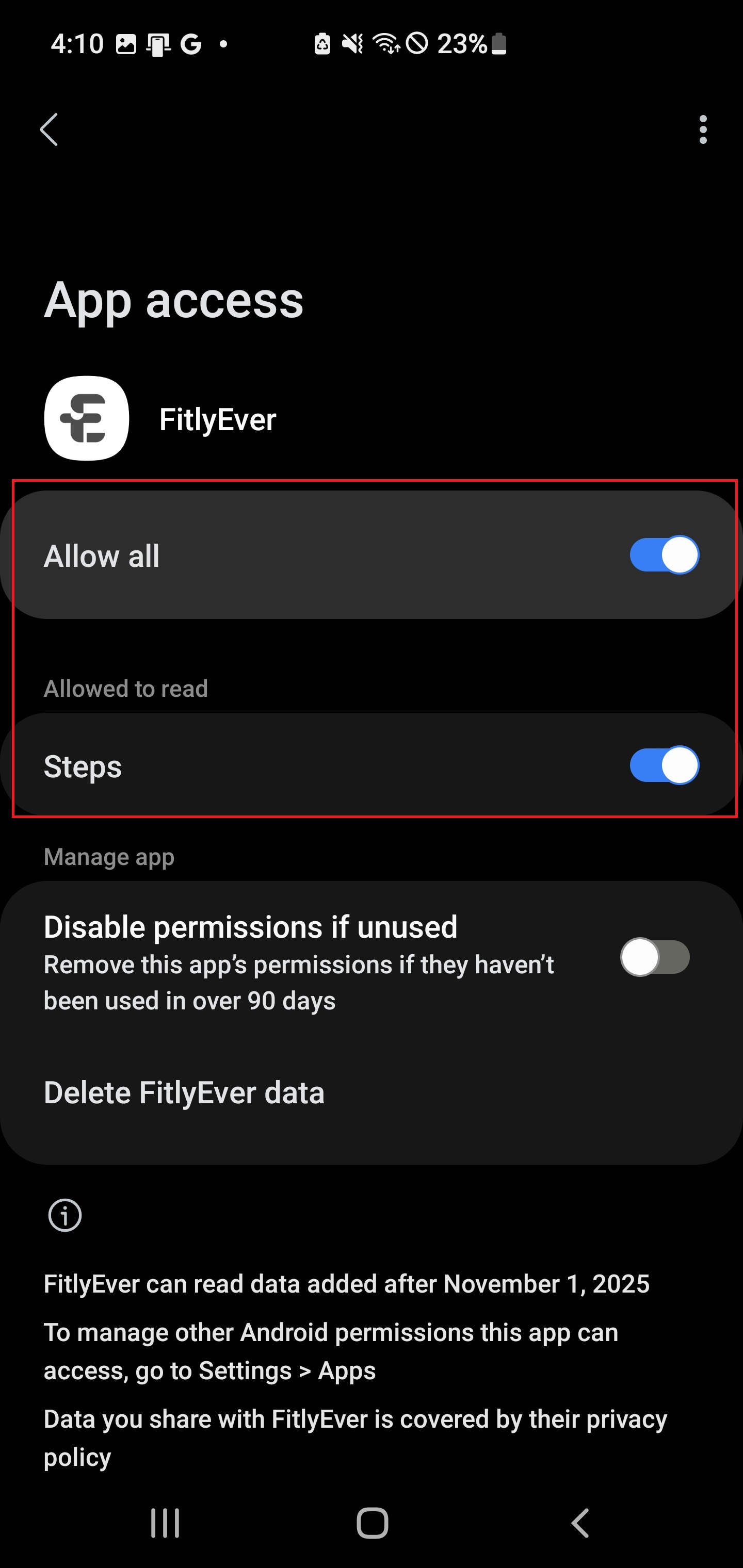
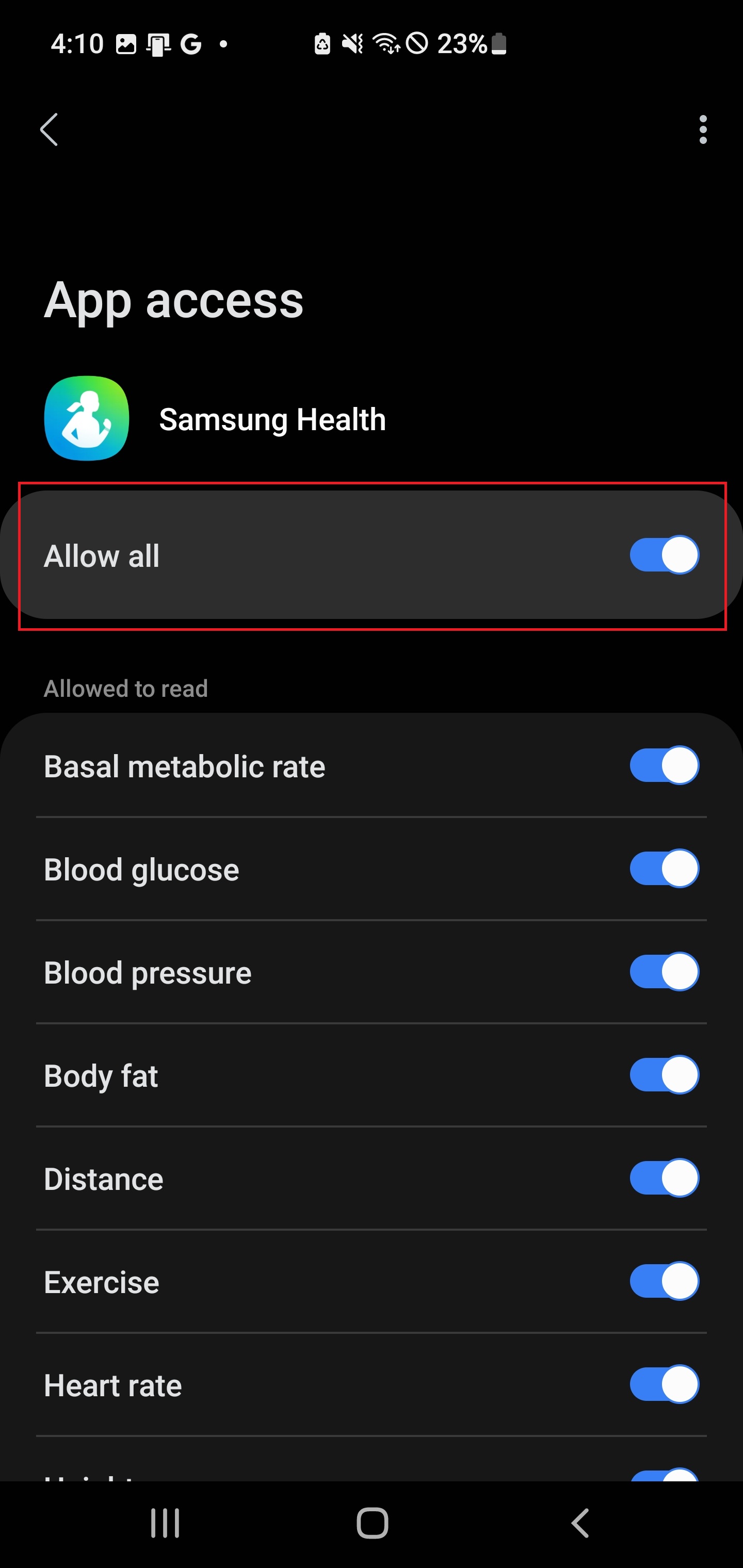
Grant steps permission for both 'Samsung Health' and 'FitlyEver'.
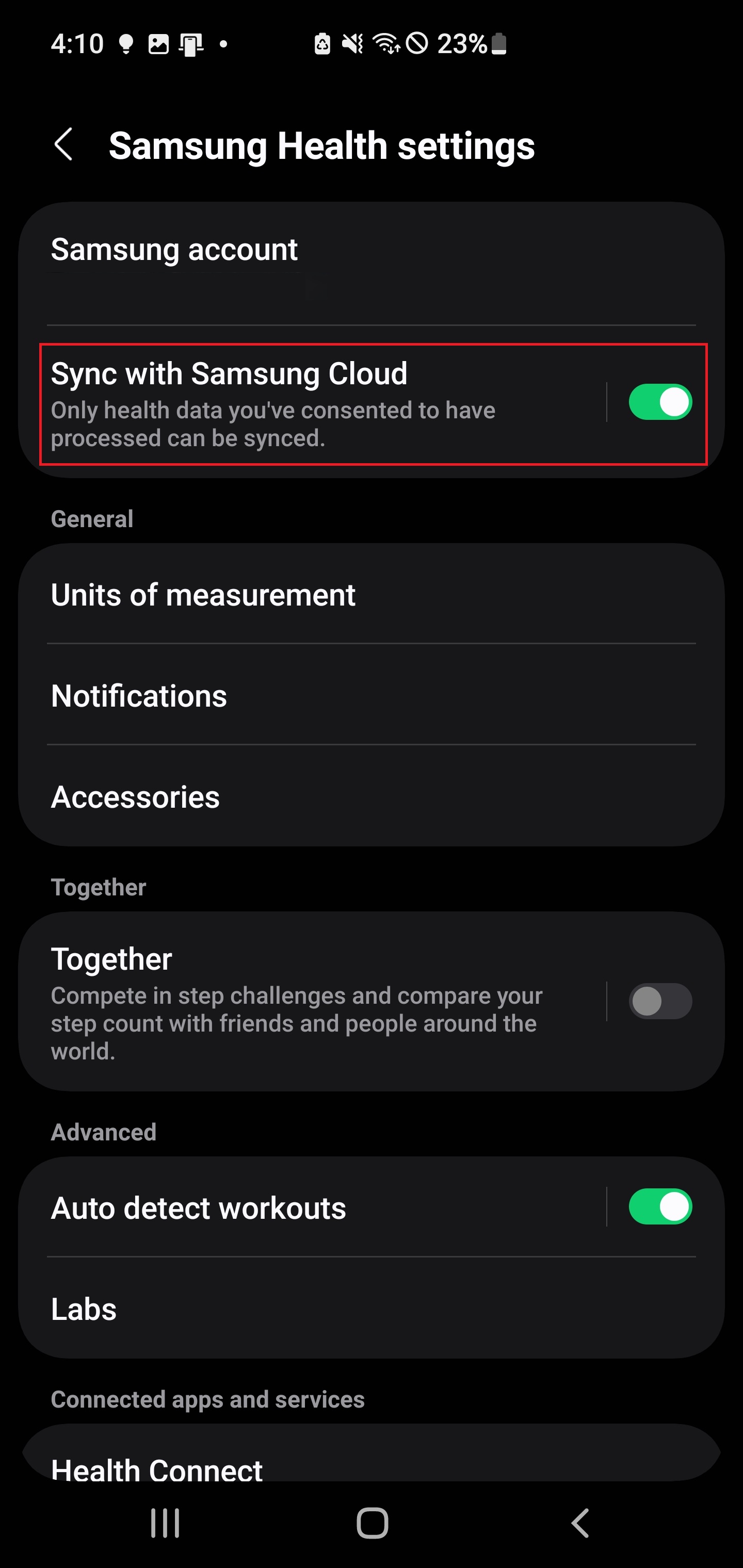
4. Samsung Health Cloud Sync
In 'Samsung Health', click the three dots menu button and tap Settings. Then, agree to Samsung Cloud synchronization.
Troubleshooting & Important Notes
- Ensure Samsung Health and FitlyEver are updated to the latest versions.
- Data synchronization to 'Health Connect' may take over 1 hour.
- Try allowing 'All permissions' for Samsung Health.
- Try uninstalling and reinstalling 'Health Connect'.
- If you've granted all Samsung Health permissions, check that your step count in Samsung Health is not '0'.
Health Connect is Google's official platform for securely managing health data on Android devices.
Download FitlyEver
Contact: support@fitlyever.com
Last Updated